
Feedback
AI Ad Video Example
Loading...
MiniMax H3 to Video
One written prompt is all it takes: MiniMax H3 to Video produces 2K footage with dialogue, score, and effects created together. No download needed.
All Tools
Discover our comprehensive AI-powered animation toolkit
MiniMax H3
MiniMax H3 AI Video Generator
Seedance 2.5
The Future of AI Video Is Here.
Seedance 2.0
The Future of AI Video Is Here.

Veo3.1
Create Stunning Videos with Veo3.1
MiniMax H3 video generator
MiniMax H3 AI Video Generator
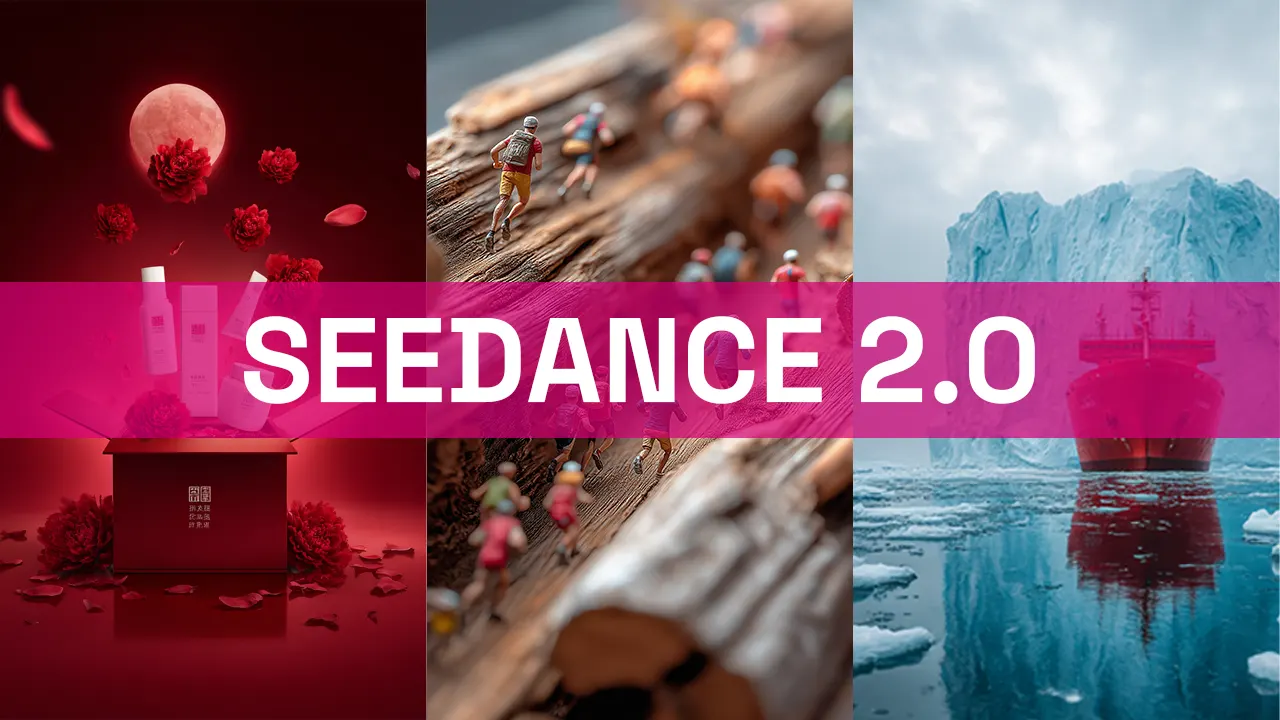
Seedance 2.0
The Future of AI Video Is Here.
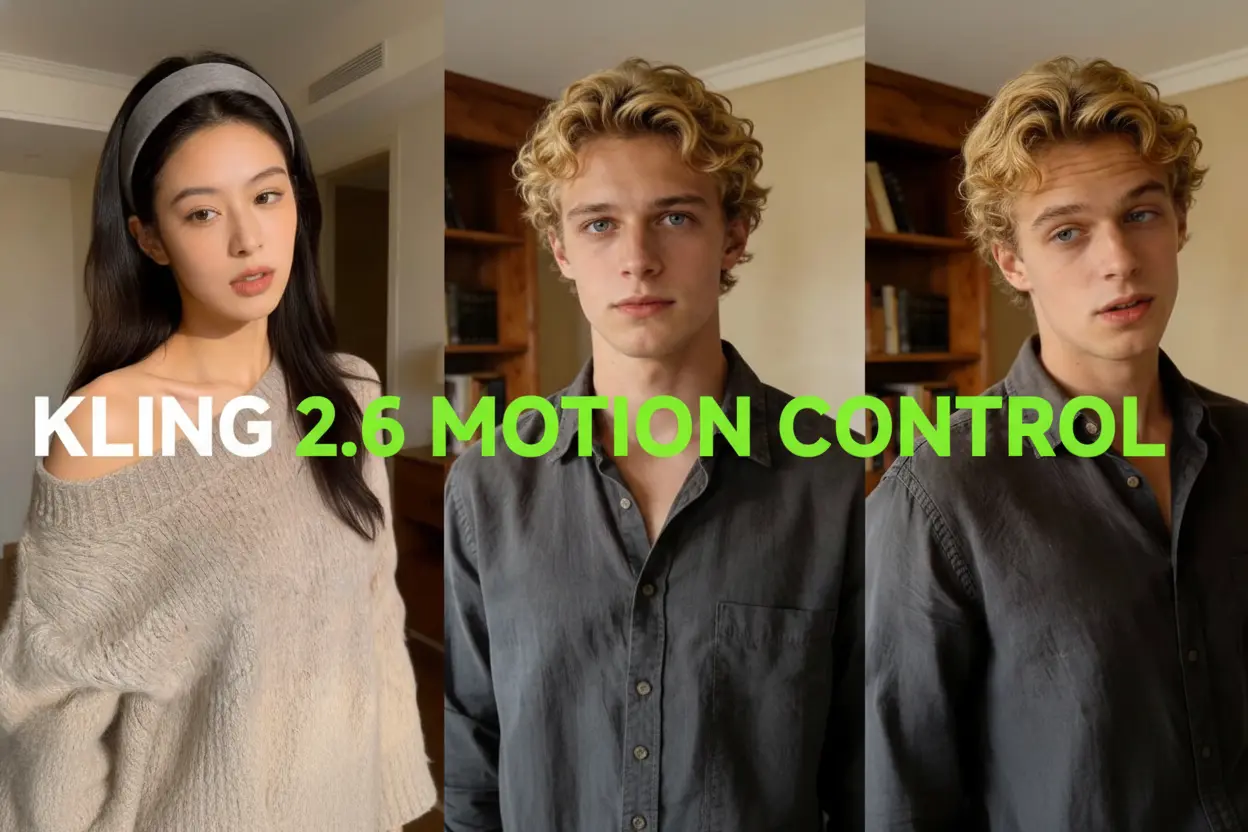
Kling Motion Control
Turn reference images into amazing motion videos in minutes
Sora2 AI
Advanced AI Video Generator for High-Quality Videos
What Makes MiniMax H3 to Video Stand Out
MiniMax H3 to Video runs on MiniMax's H3 engine, better known as Hailuo 3.0 — a tool that takes a written scene and returns 2K video with the soundtrack already in place. Because audio is created at the same moment as the picture, the way you name an effect and the point at which you say it should land both change the result. Characters speak on camera instead of being dubbed later, uploaded references keep a face or a room steady across shots, and multi-beat sequences arrive in the order you set them.
- Text-to-Video, Audio IncludedType out the scene and receive moving footage that already carries its own soundtrack — MiniMax H3 to Video produces both from one continuous run.
- Characters Who Speak On ScreenBuilt for vertical drama's tight coverage and shot-reverse-shot rhythm — the line is delivered as the shot is created, so performance and audio stay locked together.
- Continuity Anchored by ReferencesHand over as many as 9 images, 3 clips, and 3 audio tracks in a single run, each tagged with the role it plays — a face, a location, a motion, and a voice stay recognizable throughout.
Three Steps to Your First MiniMax H3 to Video Clip
Three quick steps on Morphic's boundless visual canvas take you from an idea to a finished clip made with MiniMax H3 to Video.
Core Capabilities of MiniMax H3 to Video
Prompt-driven clips with audio attached, dialogue performed on camera, continuity held by references, and multi-beat sequences that land in order — MiniMax H3 to Video turns a written shot into finished 2K footage.
Scene Prompt to 2K Clip
Write the scene and get moving frames that already contain audio — how you name a sound effect, and when you say it should land, shapes what MiniMax H3 to Video sends back.
Live On-Screen Dialogue
Vertical drama leans on close coverage and shot-reverse-shot cutting; here the line is performed as the take is created by MiniMax H3 to Video, so delivery and picture arrive as one.
Fifteen Reference Slots
Nine images, three clips, and three audio files can go into a single run, each given a named job — MiniMax H3 to Video draws faces, places, motion, and voice from those fixed sources.
Beat-Timed Multi-Shot Scenes
Lay the clip out in beats and several shots come back from one generation — title cards, interface walkthroughs, and product reveals land in the sequence you wrote with MiniMax H3 to Video.
Compare Models Side by Side
Renders finish in minutes, and the Morphic Canvas lets you set MiniMax H3 to Video output beside takes from other engines before you commit to a final cut.
Native 2K Delivery
Output arrives at 2K with its audio already attached — sharp enough for title sequences, interface walkthroughs, and product reveals.
MiniMax H3 to Video — Frequently Asked Questions
Answers to the questions people ask most about creating video from text with MiniMax H3 to Video.
What exactly is MiniMax H3 to Video?
It is MiniMax's H3 model, commonly branded Hailuo 3.0, offered here as a text-to-video tool. Give it a written scene and MiniMax H3 to Video returns 2K video that carries its own audio, with picture and sound produced in one pass.
Does it genuinely create audio, or is that added later?
Genuinely — the soundtrack is produced in the same pass as the picture. How you name an effect and where you place its cue both influence the outcome, and characters deliver their lines on camera rather than being dubbed afterward.
How can I get the strongest first take?
Spell out subject, action, camera, light, and the sound you want, then add timing markers across the clip. MiniMax H3 to Video comes closest on take one when the beats are laid out in advance.
Are reference materials supported?
They are — one run accepts up to 9 images, 3 video clips, and 3 audio files with MiniMax H3 to Video, each assigned a role: a face, a location, a motion, and a voice drawn from something fixed.
Can it produce more than one shot per generation?
Yes — divide the clip into beats and several shots come back from a single generation with MiniMax H3 to Video, so title sequences, interface walkthroughs, and product reveals appear in the order you specified.
How does it stack up against other models?
The Morphic canvas makes that easy: render in minutes, switch models, and place MiniMax H3 to Video results next to Kling 3.0, Veo 3.1, Seedance 2.5, and Vidu Q3 before picking your final cut.
Put MiniMax H3 to Video to Work Today
Take a written scene and get back 2K footage that carries its own audio — on-camera dialogue, steady characters, and multi-beat sequences, all with MiniMax H3 to Video on an infinite visual canvas.